Set sail for a premium quiz experience
Pick a category, choose your difficulty, and jump in. Default is Easy with 10 questions.
Categories
The One Piece quiz is an interactive tool that tests your knowledge across different categories from the anime and manga. You can select difficulty, choose topics, and try different question modes. This blog explains how the tool works step by step.
What is this One Piece quiz?
It is a browser-based multiple-choice quiz. The questions are grouped by category and difficulty. You can filter which topics you want and set how many questions to play. At the end, the tool gives you a score, a grade, and an answer sheet.
You can restart anytime or share your score with friends.
READ MORE: Solo Leveling Quiz Test
How categories work
There are 6 quiz categories:
- Straw Hats
- Grand Line
- Devil Fruits
- World Government
- Pirates & Marines
- Wano & Yonko
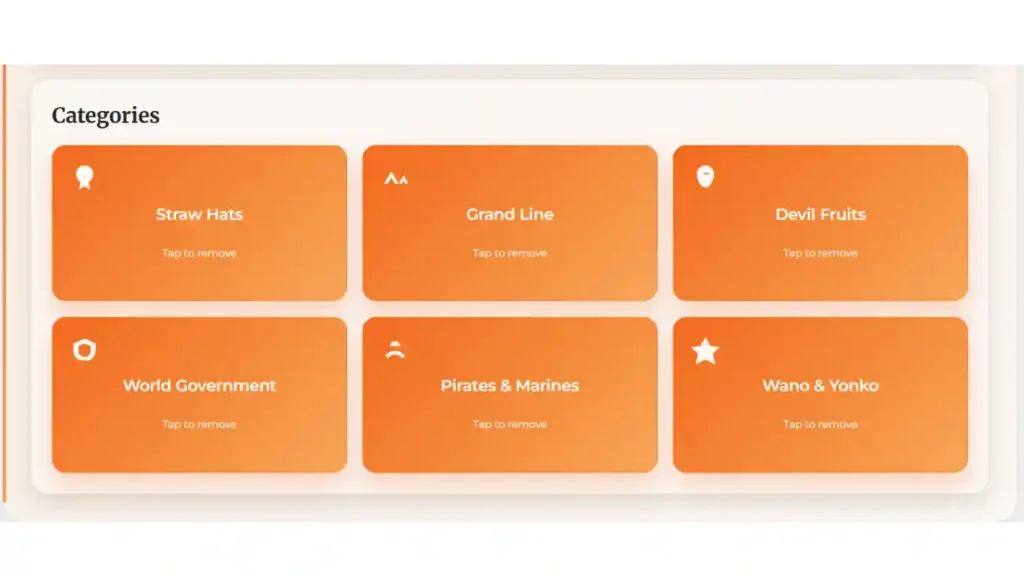
Each question in the tool is tagged with one of these. You can click to add or remove a category. The tool will only use questions from the active categories.
There are two places to toggle categories:
- Small category pills (horizontally scrollable)
- Large category cards (in explore grid)
Both do the same thing. They stay synced.
Difficulty levels
You can choose the quiz difficulty using buttons:
- Easy
- Medium
- Hard
Only questions from that level will be picked. You can switch any time before starting the quiz.
Quiz modes: Chill vs Strict
There are two modes to play the quiz:
- Chill Mode: You can check answers after each question. It shows correct and wrong options.
- Strict Mode: No feedback until the end. You complete the whole quiz first, then see the result.
If you are unsure, you can tap the “?” icon to open a short explanation.
Question count and ‘Use All’ toggle
There is a slider to set how many questions you want to attempt. You can go from 1 to 20.
Below the slider, there is a checkbox:
- If you select “Use all questions”, it disables the slider and includes every question from the selected categories and difficulty.
How options and selections work
Each question has 4 options. Some are single-answer, some are multi-answer.
You must select an option (or multiple) before clicking check or next.
You can:
- Go back to the previous questions
- Check answers in chill mode
- Lock in answers in strict mode and review later
Once checked, the options get colored as:
- Green (correct)
- Red (wrong)
How scores and grades work
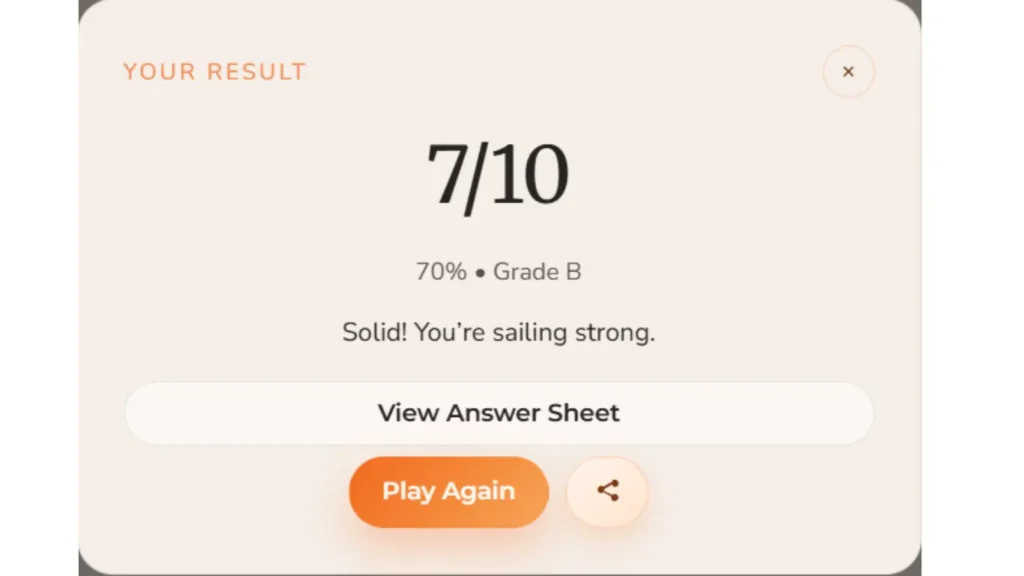
At the end, the quiz shows:
- Your score (e.g. 8/10)
- Percentage (e.g. 80%)
- Grade (S, A, B, C, D)
- Message based on your score
The grading scale:
- S: 90% or above
- A: 80–89%
- B: 70–79%
- C: 60–69%
- D: below 60%
The grades and messages appear in a styled results panel.
View the answer sheet
After completing the quiz, you can tap the “View Answer Sheet” button. It shows all questions with:
- Your selected answer
- The correct answer
- Mark as correct or wrong
This is useful if you want to revise your mistakes.
Share your score
There is a share button on the results page.
When you click it, the tool copies a URL with your score and grade. You can send this to friends.
The shared link opens the results directly. Others cannot see your answers, only the score and grade.
Mobile friendly and fast
The One Piece quiz tool works smoothly on both desktop and mobile. The design is responsive. It uses minimal external assets, so it loads fast.
CSS is optimized with a light color palette and modern UI. The scroll areas, buttons, and feedback messages work well on touch devices too.